What is Charger readiness in the MyPlugStream app?
Charger readiness is the status card inside the MyPlugStream app that explains whether your charger is ready to start, already charging, waiting for something, or needs attention.
In short, it helps you know what's happening before you wonder why.
If charging does not begin when you expect, this is usually the first thing to check.
Where to find Charger readiness
Open your charger in the MyPlugStream app. The Charger readiness card appears on the charger details screen and updates as the app receives the latest charger information.
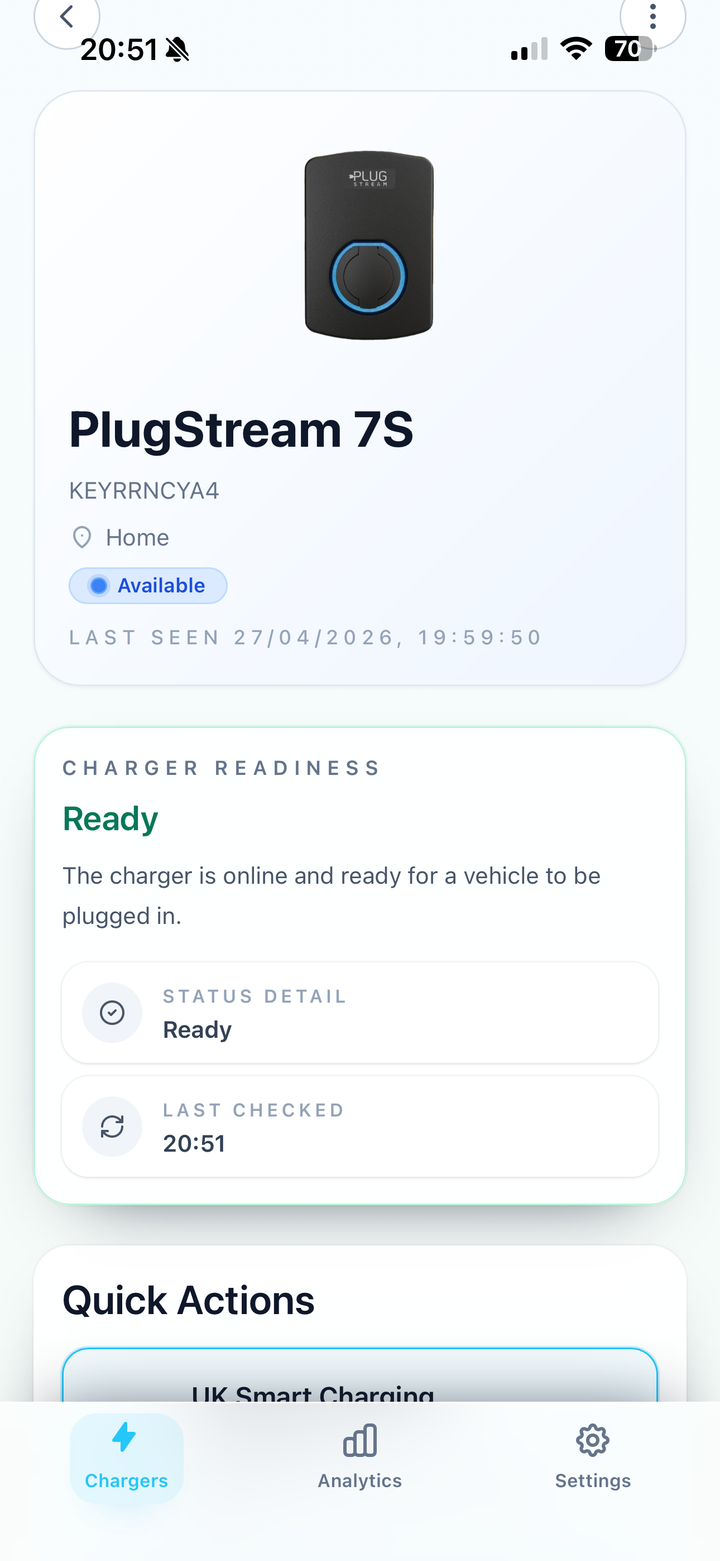
What the Charger readiness card shows
| Card item | What it tells you |
|---|---|
| Title | A quick summary such as Charging now, Vehicle connected, waiting for schedule, Waiting for charger, Charging disabled, Charger offline, or Fault detected. |
| Message | A plain-language explanation of what the charger is doing right now. |
| Next action | A suggested next step when the app has one for you. |
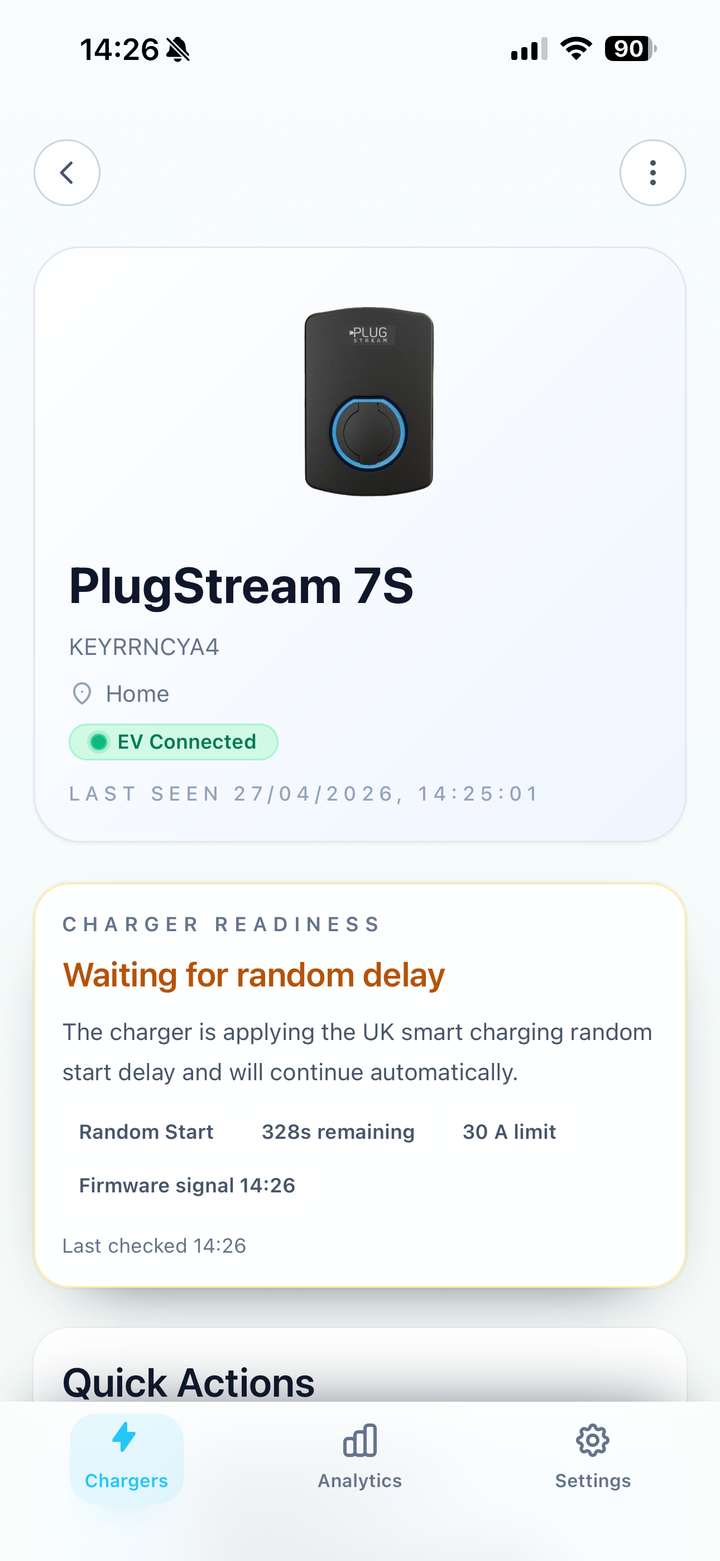
| Reason label | A short extra hint about why charging is waiting or blocked. |
| Limit label | The charging limit currently being applied, such as a lower amp limit caused by a site limit or load balancing. |
| Checked at | How recent the visible charger data is. |
When should I check Charger readiness?
Check Charger readiness if:
- charging starts later than expected
- charging speed is lower than usual
- the app says
Charging paused - the app says
Waiting for site telemetry - the app says
Charger offlineorFault detected - you want to understand whether a schedule, random delay, load balancing, or a site limit is affecting charging
Example Charger readiness screens
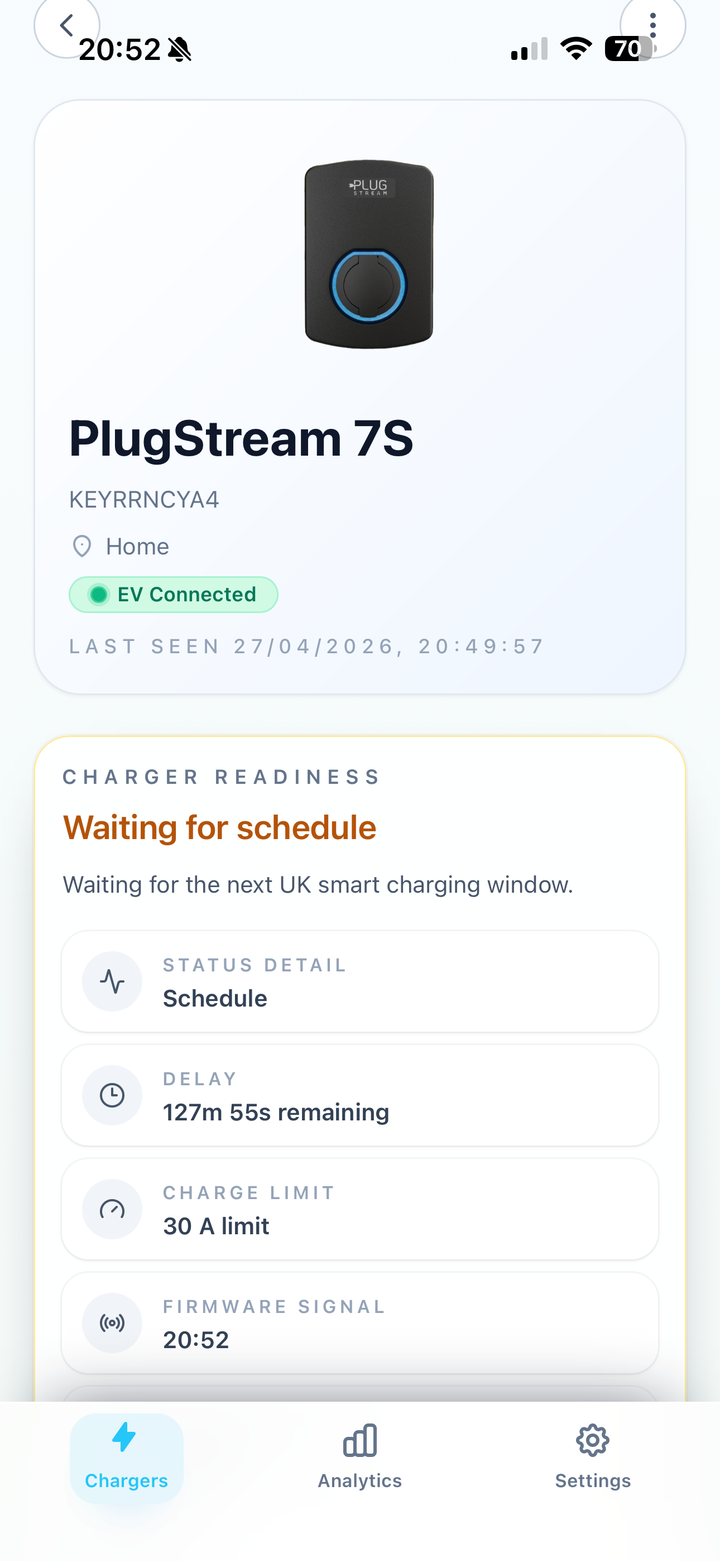
These examples show how the same card changes depending on the reason charging is ready, waiting, or delayed.
What Charger readiness can help you understand
The card is designed to answer the most common questions quickly:
- Is the charger ready to start, or is it still waiting for the vehicle?
- Is charging being held by a schedule or random delay?
- Is Vehicle Wake Assist helping during a scheduled wait, where supported?
- Is load balancing or a site limit reducing the available power?
- Has the charger gone offline?
- Has the charger reported a fault?
Where does this information come from?
The app gets this explanation from PlugStream's Charger readiness endpoint. You do not need to call the endpoint yourself; the MyPlugStream app does that for you.
The endpoint combines the latest charger status, active charging session, connector state, smart charging mode, site control signals, live meter readings, firmware signals, Vehicle Wake Assist state, supported capabilities, and any active charge limits.
That means the app can show a clearer reason than a basic online, offline, or connected status.
What should I send support?
If you contact PlugStream Support, send a screenshot that shows the full Charger readiness card.
Try to include:
- the card title and message
- any reason or limit shown
- any wait time or checked-at time
- whether the charger is plugged into a vehicle
- the charging mode you expected to use
For more examples, see What screenshots should I send to PlugStream Support?.
What should I do after checking it?
- If the card says
ChargingorCharging now, no action is usually needed. - If the card says
Vehicle connected, waiting for schedule, check your charging schedule or wait for the next charging window. - If the card says
Charging paused, read Why does the app say Charging paused?. - If the card shows a lower limit than expected, read What is load balancing and why can it affect charging?.
- If you want a full explanation of the possible card titles, read What do Charger readiness statuses mean?.
- If your vehicle misses scheduled starts, read Vehicle Wake Assist.
Before you contact support
Open Charger readiness first and note the exact title and message you see. This makes it much easier for support to understand why charging is waiting or blocked.
Still need help?
Contact PlugStream Support and include enough detail for the team to find your charger and understand what happened.
- Phone: 0300 180 0403
- Email: support@plugstream.co.uk
Please include:
- charger serial number, if you have it
- MyPlugStream account email or site contact email
- LED colour or Charger readiness message
- what you expected to happen and what happened instead
- photos of the charger, cable, connector, or installation area if relevant
- screenshots from the MyPlugStream app if relevant