Setup WiFi/Ethernet Network Connection
Overview
All PlugStream Charge Points support Ethernet, Wi-Fi, and (with an optional add-on card) 4G connectivity.
This guide explains how to set up Ethernet and Wi-Fi so your unit can take full advantage of PlugStream smart features.
Wi-Fi setup methods
PlugStream charge points support two Wi-Fi configuration methods:
| Method | Summary |
|---|---|
| Bluetooth app setup | The PlugStream app connects to the charger over Bluetooth and sends the selected Wi-Fi network details during setup or commissioning. |
| Setup hotspot and setup page | The charger creates its own temporary setup hotspot. You connect a phone or laptop to it and set up Wi-Fi on the charger's setup page. |
Use the Bluetooth app setup where it is available for the charger and installation workflow. Use the setup hotspot when the app flow is not available, when firmware requires it, or when PlugStream Support directs you to use it.
On PlugStream 7S (PS-7S) and PlugStream 7T (PS-7T) firmware 1.52 or later, Bluetooth is on all the time, unless it has been turned off for that charger. On firmware 1.42 to 1.51, Bluetooth is on for the first 10 minutes after power-on, and comes back after the charger has been offline for about 5 minutes. A connected phone keeps it on, and it stays on for up to 30 minutes after the last connection. See Bluetooth availability.
Ethernet
- PlugStream includes an RJ-45 Ethernet port on the main board.
- Connect a standard LAN cable to this port.
- No configuration is required — the charger will automatically request an IP address from your network’s DHCP server.
For the most reliable performance, we recommend using Ethernet whenever possible.
Setup hotspot
The charger has its own setup hotspot for Wi-Fi setup without Bluetooth.
- The hotspot is called PlugStream-XXXX, where
XXXXis the last 4 characters of the charger's serial number. - It only appears while the charger has no network connection (Wi-Fi, Ethernet, or 4G):
- at once, if no Wi-Fi network has been saved
- about 30 seconds after power-on, if a saved Wi-Fi network has not connected
- about 2 minutes after the charger loses its network connection
- It turns off once the charger connects to a network again.
The hotspot depends on the charger's connection to the router, not on the internet. If the charger is still joined to the router but the internet is down, the hotspot does not appear.
The hotspot password
Firmware 1.72 or later: the password is the charger's local access password. Find it:
- on the Local access card in the box, whose QR code joins the hotspot directly
- in the MyPlugStream app, under Charger settings > Local access
Firmware before 1.72, or a charger with no local access password yet:
- the adoption code printed on the charger's shipping-box label, exactly as printed
- on chargers supplied before adoption codes existed, or on firmware older than 1.45: the serial number, in capital letters with no spaces
Use the adoption code from the label, not a code shown later in the app. The app's code can change when the charger is claimed, but the charger keeps the code on its label.
See Your charger's local access password to find, change, or restore it.
Set up Wi-Fi on the setup page
-
On your phone or laptop, open Wi-Fi settings and join the PlugStream-XXXX network. Enter the hotspot password. It is case-sensitive.
-
The setup page should open by itself. If it doesn't, open a browser (Safari or Chrome) and go to http://192.168.4.1.
-
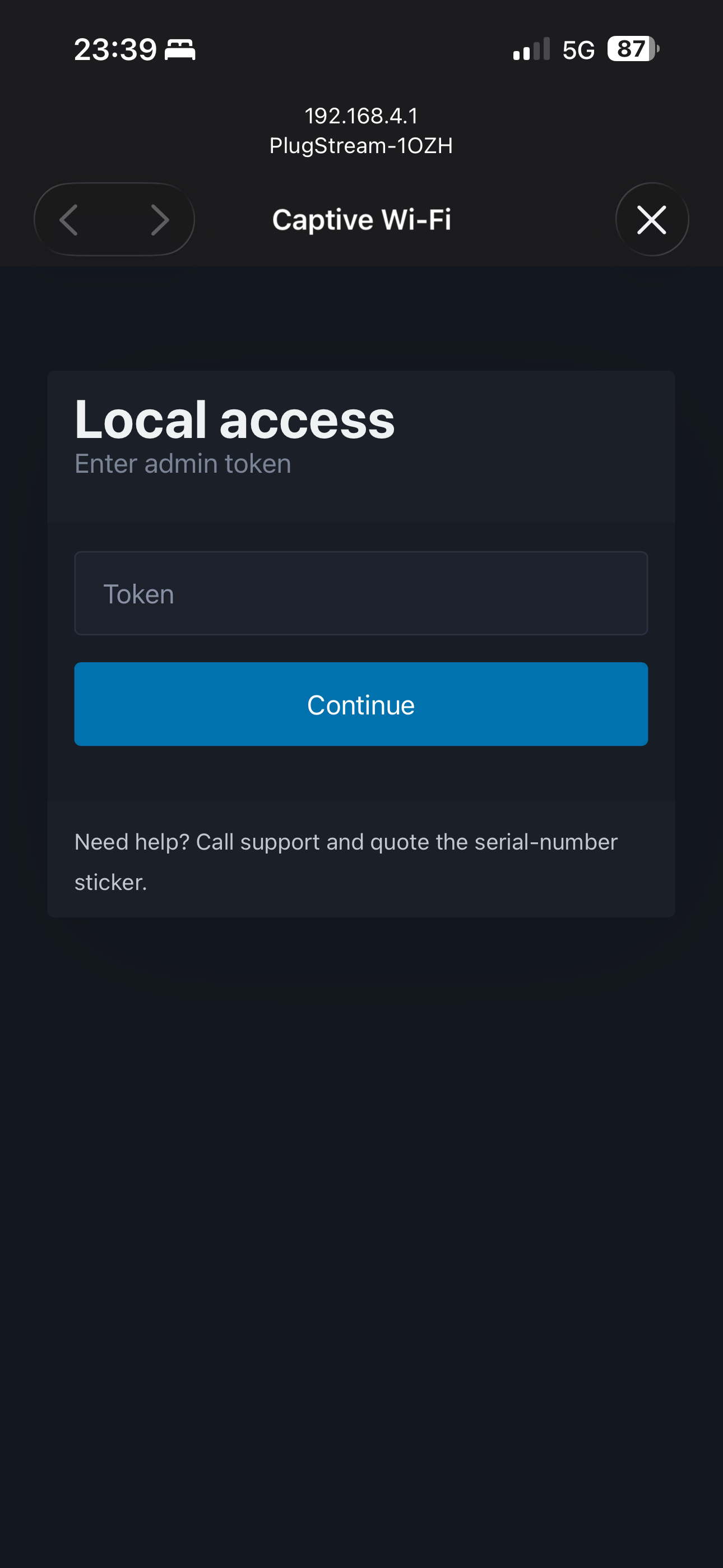
Log in to the setup page:
- Firmware 1.72 or later, with a local access password: the username is the charger's serial number, and the password is the local access password.
- Firmware before 1.72, or no local access password yet: enter the charger's serial number. There is no password.
After 5 wrong passwords, logins stop for 60 seconds. Each further wrong password doubles the wait, up to 15 minutes. The page tells you how long to wait.
-
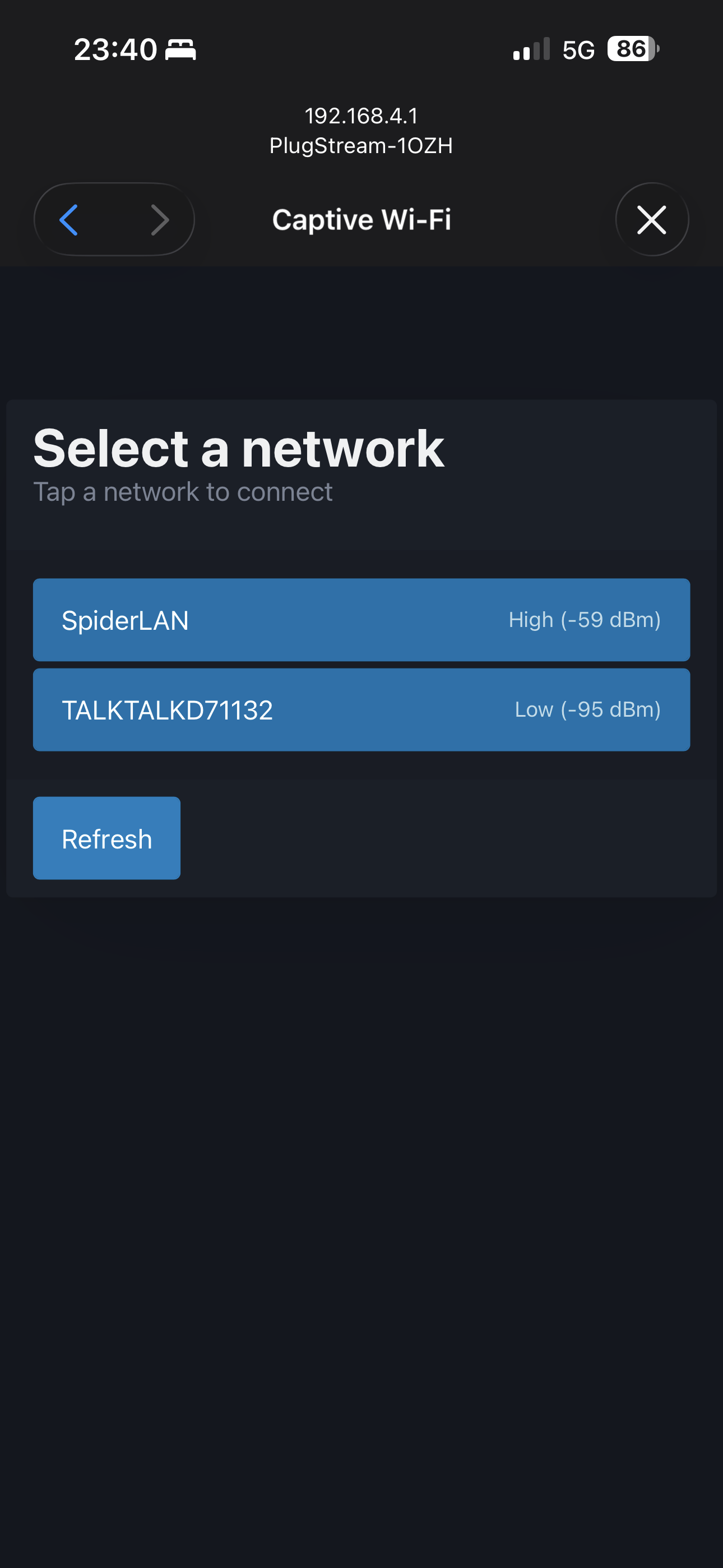
Choose your home or business Wi-Fi network from the list and enter its password. If your network does not appear, click Refresh.
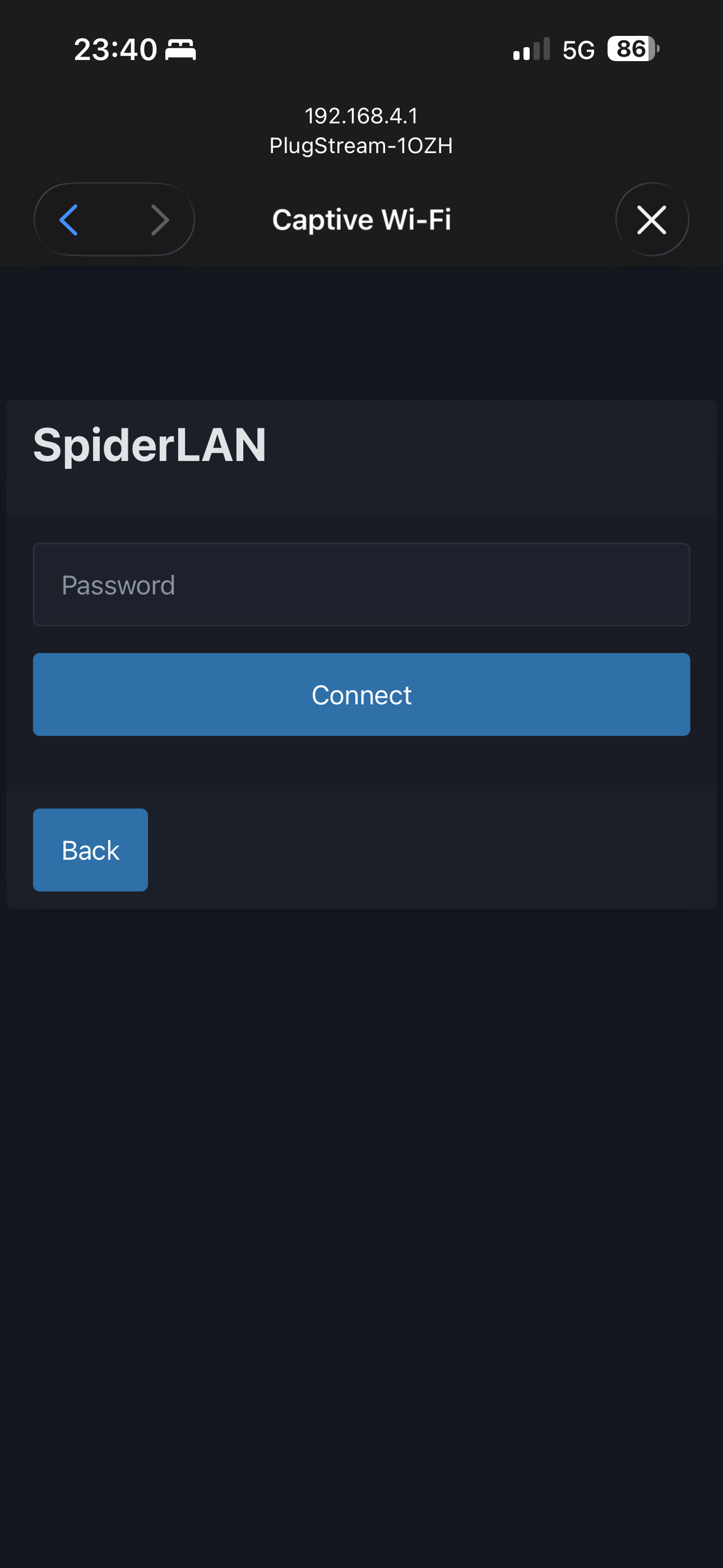
Check your Wi-Fi password carefully
Be careful not to confuse zeros (0) with the letter O — they can look similar when typed.
-
Click Connect.
- PlugStream will restart and attempt to connect to your Wi-Fi.
- A successful connection is confirmed when the LED indicator ring shows solid white.
- Once PlugStream is successfully joined to your network and can access the internet, it will connect to PlugStream Cloud which is confirmed when the LED indicator ring shows solid blue (see LED Status Guide for details).
- The setup hotspot turns off once the charger is connected.
On firmware 1.72 or later, the setup page also has a Local access page for changing the local access password. Firmware upload and install actions on the setup page ask for the local access password again. On a charger with no local access password, they ask for the adoption or activation code instead.
Next Steps
Once configured, PlugStream will remain online via your chosen Wi-Fi network.
If Wi-Fi is unreliable, you can always connect Ethernet later for maximum stability.